![TDS Logo Banner White.png]](https://help.tetondata.com/hs-fs/hubfs/Logos%20and%20Graphics/Logos/TDS%20Logo%20Banner%20White.png?height=50&name=TDS%20Logo%20Banner%20White.png)
After your initial search select the result you would like to investigate more thoroughly.
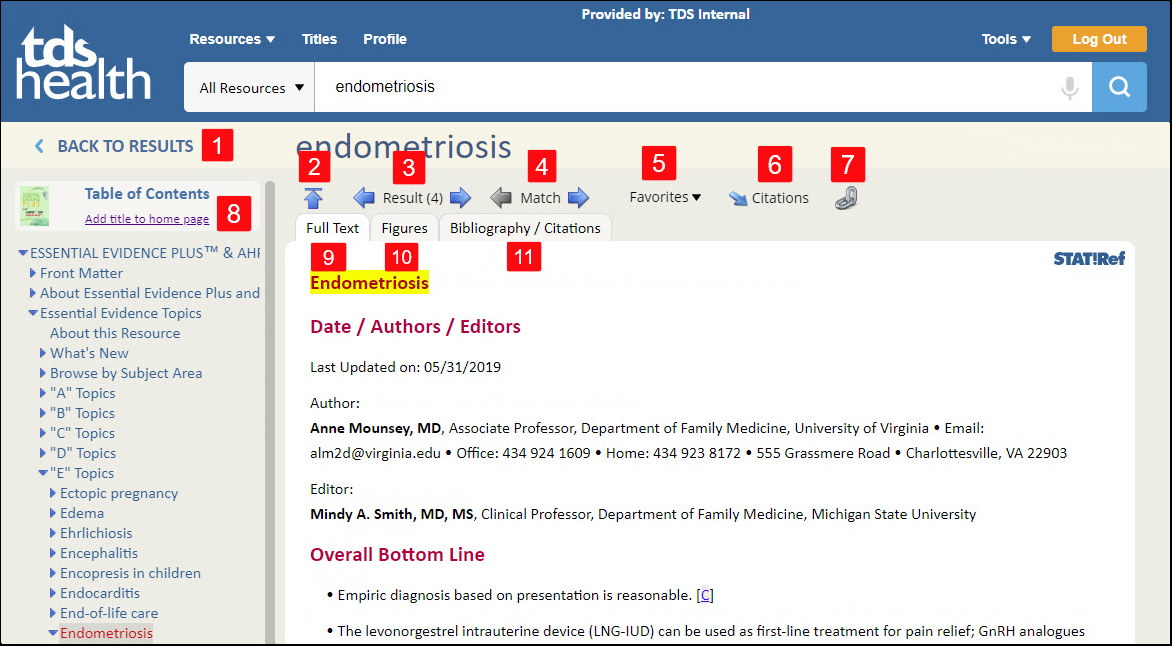
On your results page you will find the following:
1) Back to Results
Click the Back to Results link located under our logo and above the Table of Contents to go back to the Primary Results page.
2) Up Arrow
As you read or scroll down the page you can use this icon to jump back to the top of the page. To display these options as you move further down the page click the SHOW TOOLBAR tab. You can toggle show/hide toolbar using the pin icon.
3) Result - Forward or Backward
To view the previous or next document in your search results without having to return to the search results page, click on the left and right arrows next to "Result" in the toolbar. This item only appears when you've executed a search and the current document has hits.
4) Match
Search terms found in a document are marked in red. The current one is additionally highlighted in yellow. To view the previous or next term match within a document, click on the left and right arrows next to "Match" in the toolbar. This item only appears when you've executed a search and the current document has hits.
5) Favorites
Manage your Favorites while in a document. Click to add a favorite, show annotations, or list favorites. To use this feature, you need to create a profile. More on Favorites. (Go to Profile > Favorites).
6) Citations
This link will open the bibliography and provides you with options to get a citation for the title.
Citation options include:
- Download RefWorks Citation File
- Export Directly to RefWorks
- Download EndNote Citation File
- Download RIS Citation File
- Download Bib Text Citation File
- Or highlight and copy (Ctrl-C) the plain text citation
7) Get a Link to this Location
Clicking this link will produce a URL for you to keep or share. You have options in selecting an Authentication Method. The default is by IP. The link will only be usable by people who share access to your subscription.
8) Table of Contents & Add Title to Home Page
Table of Contents
The Table of Contents (TOC) is now displayed in the left pane. The section in the title's TOC you were taken to will be expanded and highlighted in red. You can click on any section or word in the TOC to view that information in the pane on the right.
Add Title to Home Page
If you access a particular title a lot, you can add it to your home page where it will be quickly accessible. Just click the link. Go to your home page by clicking the TDS Health Logo. Scroll through your panels and move your new title panel anywhere you want. By default, it will be at the bottom. At the bottom of the title panel is a Remove link. Just click to remove the title at any time. Please note: You must be logged in with your Profile to manage Home Page Panels.
9, 10 & 11) Content Type Tabs
The various types of content included in a document/chapter/section are separated out for your convenience. The tabs you see will depend upon the content of the title. Not every title will have all 4 tabs. The tabs are as follows:
Full Text - This tab is the full text of the document. Figures and tables in the document are links and hovering over these links with the mouse will give you a floating, low-resolution image of the figure or table. Clicking on the thumbnail will cause the figure or link to be displayed full size in a popup window. If you click on the link instead of on the thumbnail, your browser will navigate to the figure or table instead of displaying it in a popup window.
Figures - This tab displays thumbnails for only the figures contained in the document. Clicking on a figure thumbnail will load the full-size figure document.
Tables - This tab displays thumbnails for only the tables contained in the document. Clicking on a table will load the full-size table document.
Bibliography / Citations - This tab displays only the references contained in the document, condensed for easy analysis.
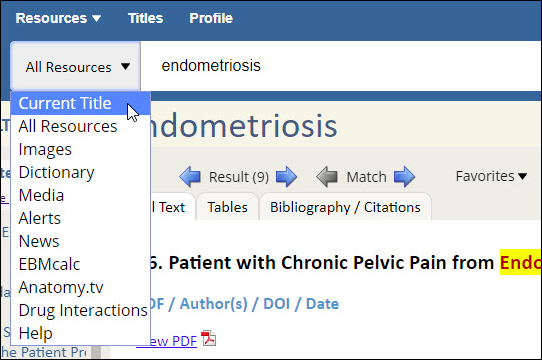
Searching the Currently Viewed Title
After retrieving a document from a title, you can use the Search drop menu to select Current Title. This allows you to change the search term(s) but stay within the current title.
Boolean Operators
A search statement can include standard Boolean Operators, giving you additional control of your query. TDS Health supports the following Boolean Operators:
1) AND - Each word must occur in a document.
2) OR - One or more words must occur in a document.
3) OADJ - The search phrase must be found exactly as entered. You can achieve the same result by quoting your search terms; e.g. "myocardial infarction pregnancy". Hyphenating terms also forces ordered adjacency; e.g. myocardial-infarction-pregnancy. Placing a decimal point in a number will use ordered adjacency as well; e.g. 44.13.
If you have any questions about STAT!Ref, please contact TDS Health at support@tetondata.com or call 800-901-5494.