
About Searching TDS Health
All of the content within your STAT!Ref library subscription is indexed and fully searchable. An All Search is the default setting meaning that every title, image/media, alerts, additional resources etc. is returned to you upon your initial search and all are available for access from the Result page. TDS Health offers multiple filters on the Results page to further refine and categorize search results. The default settings for an initial search are, FILTER BY: All Titles; DATE RANGE: All Years; RELATED TO: None of the options are pre-selected; ADVANCED SEARCH: Suffixes.
To get started, simply enter one or more search terms in the search field and click the Search button or press Enter. By default, TDS Health finds documents containing all the search terms - an AND search. AND is a Boolean Operator.
By default, Results use the All tab. The first page of results will include matching documents of any type, a section of top Images match documents is included as well as a section of top hits in News. If the Image portion appears, it is a preview of what will be shown if the Images filter Tab is clicked on the Results page. A News section shown under the All tab is also a preview of the top items shown if the News tab is clicked.
Tabs
1) All - All types of matching documents, text, tables, figures, video...
2) Images - Figures, sketches, photographs, and any image type of document
3) Media - Videos, audio, and multimedia documents
4) Alerts - STATRef Evidence Alerts
5) More... - A variety of additional resource search results, including: term definitions; Tables (columnar data documents); EBMCalc; PubMed; MedlinePlus; CDC Pink Book; CDC Yellow Book; CDC's the Community Guide; CDC's Morbidity Mortality Weekly; Practice Guidelines; The Medical Letter's Adverse Drug Interactions; and TDS Health Help files.
Once a tab has been selected, the next search performed will remain on that tab, rather than returning to All. This allows you to refine your search within the last selected resource. You can return to search results across all resources by clicking All again, or filter results by any of the other primary results tabs or any of the items under "More..."
Refining Your Search
From your initial search you can use any of the tools in the left column - Filter By, Date Range, Related To & Advanced Search to further refine your searches. Your search results will vary depending upon the options you select.
Main Search Page Overview
Tabs
All - After your initial search you will land on the ALL tab. Everything found regarding your search is presented here.
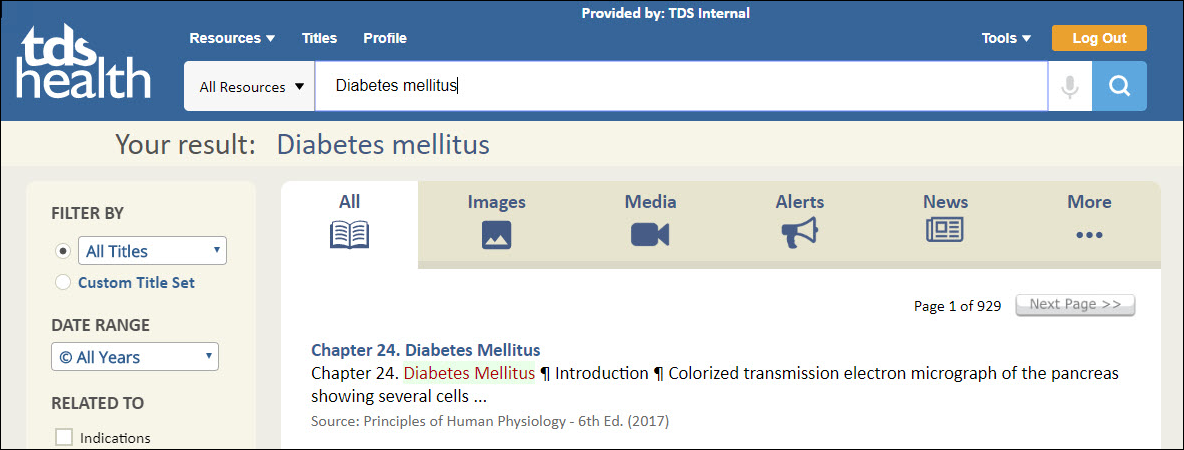
Images - Every image found in any title related to your search can be accessed from this tab.
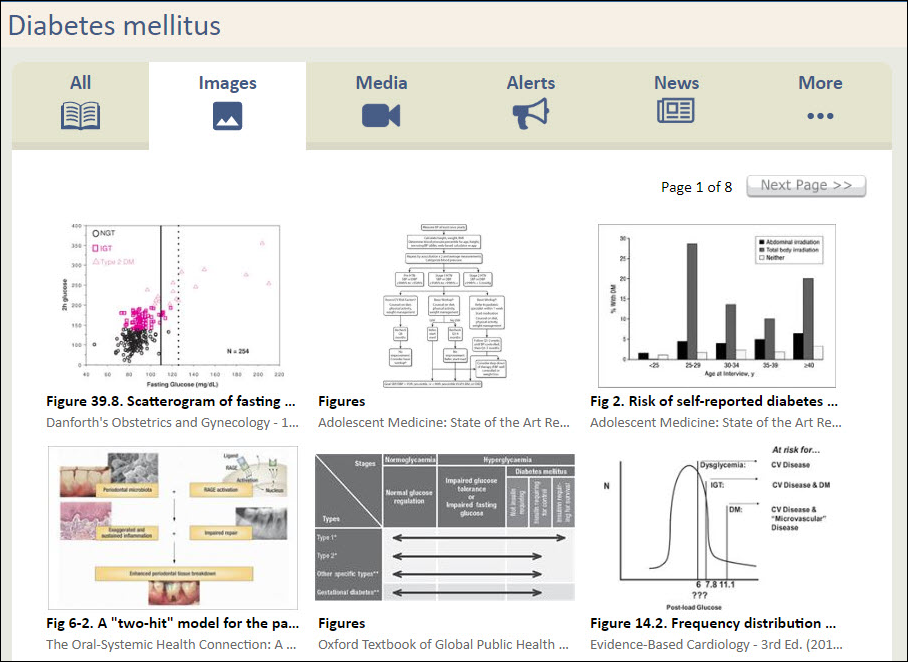
Media - Any Media found is listed here. This could include videos as well as dictionary terms.
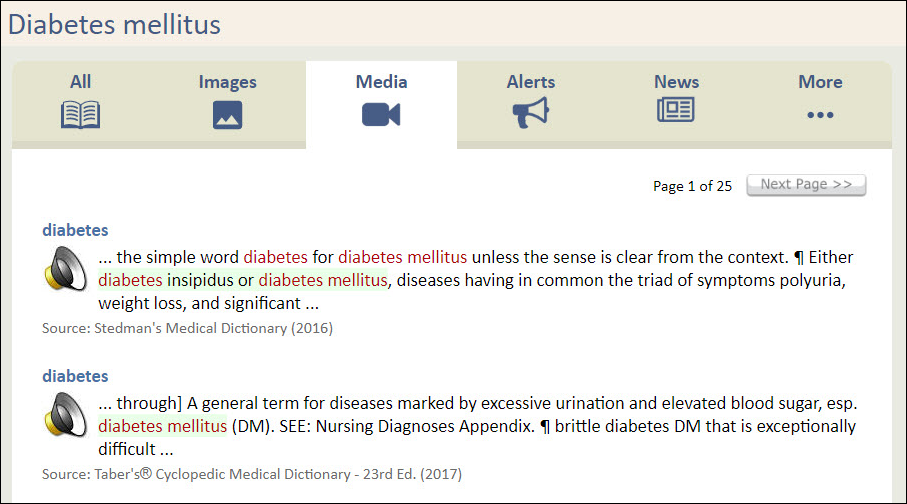
Alerts - Any related STAT!Ref/McMaster Evidence Alerts found are listed and accessible from this tab.
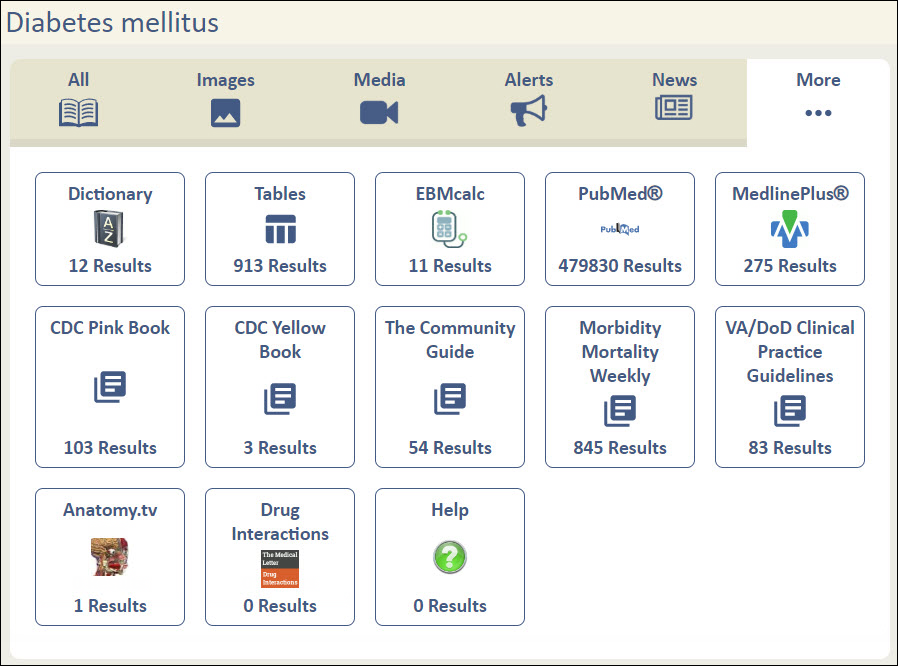
More - This tab allows you to quickly see other resources available related to your search.
Dictionary
Tables
EBMcalc
Drug Interactions from The Medical Letter
PubMed
Medline Plus
CDC Pink Book
CDC Yellow Book
The Community Guide
Morbidity Mortality Weekly
VA/DoD Clinical Practice Guidelines
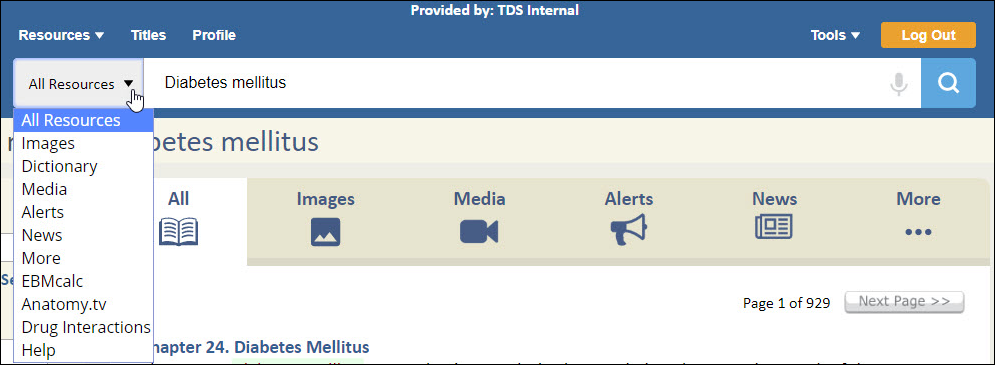
Search drop-down menu
In addition to the tabs as explained previously, the Search Bar also has a search drop-down menu. You can use the drop-menu from any page to quickly access any of the many resources available to you.
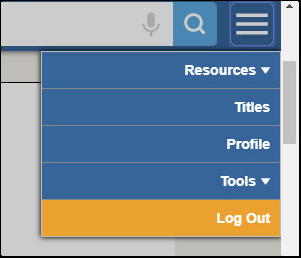
Pinned Search Bar
The pinned search bar will remain at the top of the page with you for ease of access. You can toggle to hide or show the search bar at any time.

1. Search drop-menu
2. Main search window
3. Quick Link Menu
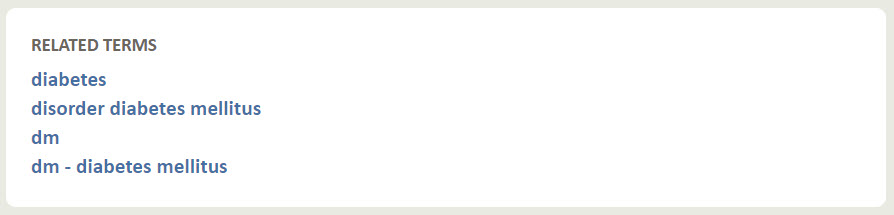
Related Terms
Any related terms to your search can be found at the bottom of this page.
Filter By
All Titles Drop Menu
All - Default setting, searches everything
Your Search Sets - Your pre-defined Search Sets are located here. To create a Search Set, login to your profile and select search sets, add a set, name it, and pick your titles. Select one of your Search Sets and search. Only titles in that set will be included in the results. To re-set, select All.
Disciplines - Pick from one of our pre-defined Discipline Sets, search and your results will only contain titles and resources in that discipline.
For example, if you intend to search for "cancer treatment", you might select the Oncology search set from the drop-down menu to limit your search to all cancer related titles.
To reset, select All Titles.
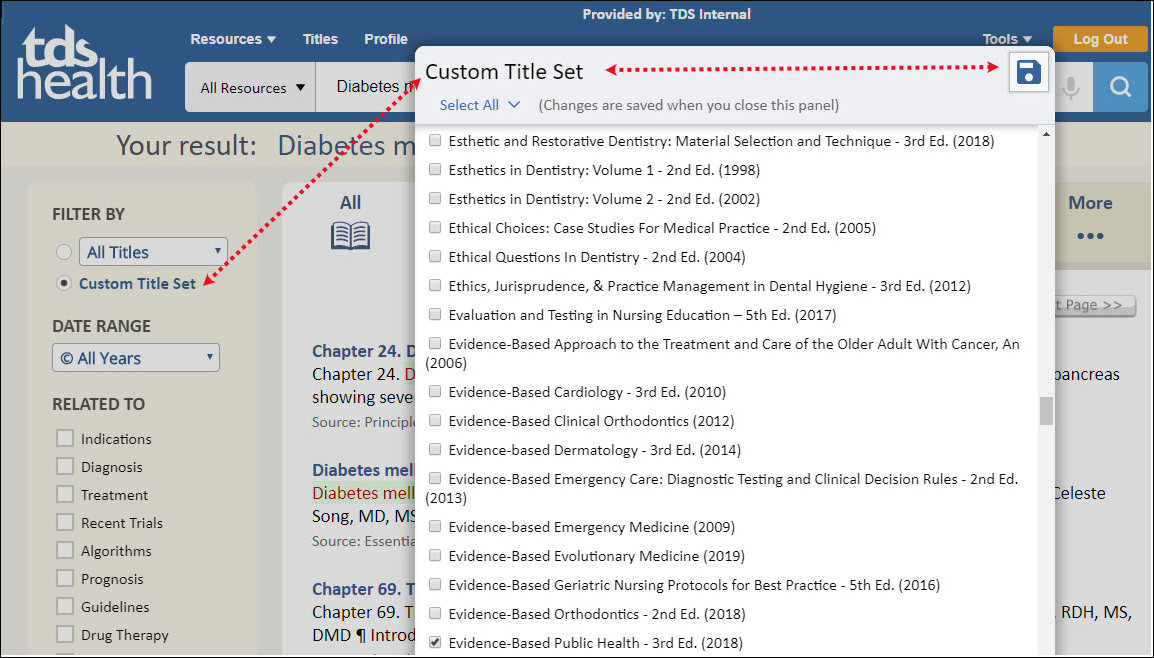
Custom Title Set
To create and use a custom title set, conduct a search, and then under FILTER BY click on Custom Title Set. A pop-up list of all your available titles will be presented. Check all titles you would like to have searched using your custom set. Click save. You'll notice that your original search results have changed to only reflect results from the custom set.
Date Range
This field is set to All Years by default. You can limit the search to 6 years or later using the drop menu.
Related To
These are the options available to you when you conduct a search. It's not necessary to select any or you can select as many as you want.
Indications
Diagnosis
Treatment
Recent Trials
Algorithms
Prognosis
Guidelines
Drug Therapy
Evidence Based
Advanced Search
The regular search could be considered advanced already because it provides all resource option available to you; text, images, media, alerts and so on. By default, the Include suffixes are also performed. You can deselect this option and/or choose one of the other more advanced options under this section to include in your search.
Include Suffixes (Stemming)
If the "Include Suffixes" option is selected, your search will include matches for the term(s) you entered as well as matches for variations of the root words with different suffixes. For example, a search for disease with Stemming turned on will also find diseased and diseases.
Include Related Terms
Related terms are looked up in the UMLS Meta-thesaurus and added to the search terms you entered. For example, "heart attack" is expanded into "AMI", "myocardial infarction", and many other terms.
Headings Only
Headings Only searches the table of contents structure of a title - the document headings. It excludes searching the content of the documents to find sections identified by their headings which match search terms.
Save This Search
Search Notes - Search is saved to your Favorites list
About Search Notes
A Favorite created while viewing a search results page records the exact search terms and any search settings used to perform the search. You can later use this Favorite to run the same search again.
Creating a Search Note
To create a Search Note, first run a Search. While viewing the Results page, click the "Save This Search" link at the bottom of the filter controls on the left of the results page. Go to your Profile, Favorites enter any notes you would like to include. To repeat the search at a future time, revisit your Favorites and click the search icon in the note.
If you have any questions about STAT!Ref, please contact TDS Health at support@tetondata.com or call 800-901-5494.